Showing posts with label filepicker. Show all posts

Saturday, February 7, 2015

WP App part 4 - "the Manual Automatic" - Saving and Loading images from and to a byte array

Goal:
Create the functionality to use images from the phone / take image with my phone for my Windows Phone App 'The Manual Automatic" 


Previous parts:


First setup in part 1:
http://sometimesiliketopretend.blogspot.com/2014/09/windows-phone-app-part-1-manual.html

The setup of the DataModel in part 2:
http://sometimesiliketopretend.blogspot.com/2014/09/wp-app-part-2-manual-automatic-setting.html

Using the FilePicker in part 3:

http://sometimesiliketopretend.blogspot.com/2014/11/wp-app-part-3-manual-automatic-use.html

It has been a little while since I posted about my project of developing the Manual Automatic app for Windows Phone. But a lot of work has been done since then. So now first I will show how I managed to store images in my Json datamodel.


Part 4 - Saving and Loading images in JSON

I want the images to be stored and not just referenced if all possible. That way it isn't lost if you delete the picture from your camarea library, because you might not want to have all those pictures of pages in your library.

So it would be great if the image can be stored in json.


Step 1 - Converting the image to a byte array and saving it
I want to store the picture in a array of ytes, so in my datamodel it looks like this:

    public class Manual
    {
        public int ID { get; set; }
        public string ManualName { get; set; }
        public string Description { get; set; }
        public DateTime Created { get; set; }
        public DateTime Changed { get; set; }
        public byte[] Image { get; set; }
    }

I have a byte array named Image.
After selecting the image with the FilePicker (see previous part) the WriteableBitmap originalBitmap variabele and the byte[] buffer variabele are filled. I used the originalBitmap to bind it to the Image control on the XAML.

private async void OnFilesOpenPicked(IReadOnlyList<StorageFile> files)
{
    // Load picked file
    if (files.Count > 0)
    {
        // Check if image and pick first file to show
        var imageFile = files.FirstOrDefault(f => SupportedImageFileTypes.Contains(f.FileType.ToLower()));
        if (imageFile != null)
        {
            using (var stream = await imageFile.OpenReadAsync())
            {
                originalBitmap = await new WriteableBitmap(1, 1).FromStream(stream);
                RandomAccessStreamReference rasr = RandomAccessStreamReference.CreateFromStream(stream);
                var streamWithContent = await rasr.OpenReadAsync();
                buffer = new byte[streamWithContent.Size];
                await streamWithContent.ReadAsync(buffer.AsBuffer(), (uint)streamWithContent.Size, InputStreamOptions.None);
            }
                    
            Image.Source = originalBitmap;

        }

    }
}


The buffer needs to be stored.
Since that allready is a byte[] I can simply store it in my DataModel.

So on the saveButton click event I do some checks and then call

App.DataModel.AddManual(manualNameTextBox.Text, manualDescriptionTextBox.Text, buffer);


There I set the buffer to the manual.Image ad call the sveManualDataAsync(); function

manual.ManualName = manualname;
manual.Description = description;
manual.Created = DateTime.Now;
manual.Changed = DateTime.Now;
manual.Image = buffer;

_manuals.Add(manual);


await saveManualDataAsync();

There the data will be save, see the previous post for more details.


Step 2 - Loading the Image and converting it back from byte[] to WritableBitmap.

From the Main page, where the user can search for records, they can click on the results and then it neds to open on a seperate page. On that page I want to show detailed record information and also the image. So there the byte{} needs to be converted back to an image.


On the Main page I use the code below to generate results;

private void genResult(DataModel.Manual manual)
        {
            TextBlock NameText = new TextBlock();
            NameText.Text = "Manual Name: " + manual.ManualName;
            NameText.FontSize = 22;
            //Store the manual in the Tag so we can pass it along
            NameText.Tag = manual;
            NameText.TextTrimming = TextTrimming.CharacterEllipsis;        
            NameText.Tapped += new TappedEventHandler(NameClickedEvent);
            
            
            TextBlock DescText = new TextBlock();
            DescText.Text = "Description: " + manual.Description;
            DescText.FontSize = 12;
            DescText.TextWrapping = TextWrapping.WrapWholeWords;

            TextBlock CreateText = new TextBlock();
            CreateText.Text = "Created on: " + manual.Created;
            CreateText.FontSize = 12;
            
            TextBlock IDText = new TextBlock();
            IDText.Text = "ID: " + manual.ID;
            IDText.FontSize = 12;

            TextBlock ImageStringText = new TextBlock();
            ImageStringText.Text = "ImageString: " + manual.ImageString;
            ImageStringText.FontSize = 12;

            
            resultStack.Children.Add(NameText);
            resultStack.Children.Add(DescText);
            resultStack.Children.Add(CreateText);
            resultStack.Children.Add(IDText);
            resultStack.Children.Add(ImageStringText);


        }

In the NameClickedEvent I navigate to the RecordPage

private void NameClickedEvent(object sender, TappedRoutedEventArgs e)
        {
            //Get the manual from the textblock tag and pass it along to the ReordPage
            TextBlock textBlock = sender as TextBlock;
            DataModel.Manual manual = textBlock.Tag as DataModel.Manual;

            Frame.Navigate(typeof(RecordPage), manual);
        }

On the RecordPage in the OnNavigatedTo I do the following:

 protected async override void OnNavigatedTo(NavigationEventArgs e)
        {
            //get the vars and get the one manual
            var manual = (DataModel.Manual)e.Parameter;
            
            
            //should not occur that the passed manual is empty but check anyway
            if (manual != null)
            {
                ManualNameTextBlock.Text = manual.ManualName.ToString();
                CreatedTextBlock.Text = CreatedTextBlock.Text + manual.Created.ToString();
                DescriptionTextBlock.Text = manual.Description.ToString();

                if (manual.Image != null)
                {
                    MemoryStream _stream = new MemoryStream(manual.Image);
                    ManualImage.Source = await new WriteableBitmap(1, 1).FromStream(_stream);
                }

                //Show a blank Image if no image is returned
                if (ManualImage.Source == null)
                    ManualImage.Source = ImageFromRelativePath(this, "Assets/empty.png");  
               
            }
            else
            {
                //show a message that searchterm is required
                string messageText = "Something went wrong, please go back and re-select a Manual";
                MessageDialog msgBox = new MessageDialog(messageText);

                await msgBox.ShowAsync();
            }


        }

So the byte[] is converted back to in WriteableBitmap and set to the source of the Image.

But an error occurs when I do just that:


An exception of type 'System.Exception' occurred in mscorlib.ni.dll but was not handled in user code

Additional information: The component cannot be found. (Exception from HRESULT: 0x88982F50)


If there is a handler for this exception, the program may be safely continued


I have no idea why this happens, and after searchig online for hours I still can't get it to work.
I use the same loading image from byte[] method to show the image after picked by the file picker and no error occurs. But when first storing it in the json file and the retreiving it messes it up...

At some point it worked, but after a few mote tests it broke again... Sounds stupid, but I cannot find a way to reproduce the corect working again... Something must be off.


After testing and searching I realize that this maybe isn't the best way to store images. In one of my tests I crate maybe 10 records with images and the json files grew to 11MB. So I van only imagine how big the files becomes after a while...
This will not be the correct way I gues

So i decide to not store the images in the json file. I now want to store a copy of the images in a folder in the Localfolder of the app. 

Once that is done I will post about it in a new blog post.

GNZ

Sunday, November 9, 2014

WP App part 3 - "the Manual Automatic" - Use images / Taking photo's and storing them in the DataModel

Goal:
Create the functionality to use images from the phone / take image with my phone for my Windows Phone App 'The Manual Automatic" 


Check the first setup in part 1:
http://sometimesiliketopretend.blogspot.com/2014/09/windows-phone-app-part-1-manual.html

Check the setup of the DataModel in part 2:
http://sometimesiliketopretend.blogspot.com/2014/09/wp-app-part-2-manual-automatic-setting.html


Part 3 - Use images / Taking photo's and storing them in the DataModel

An important part of my App are the images / photo's of the manuals you can add to the title and description. They contain the part of the manual you need. So I need the use to be able to take a picture of choose a file from his phone.


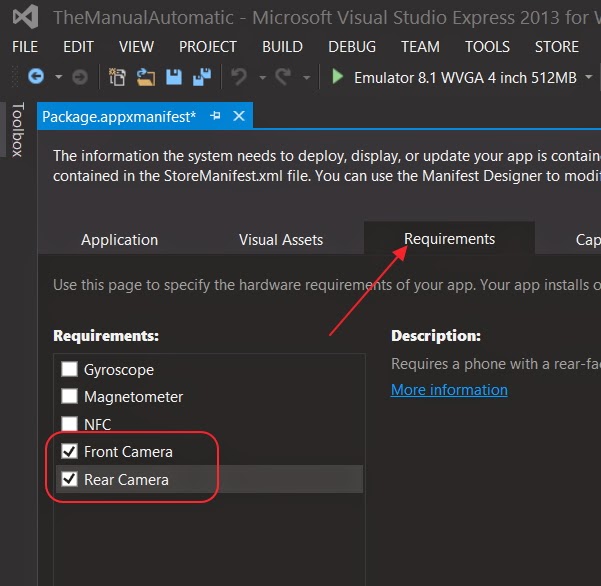
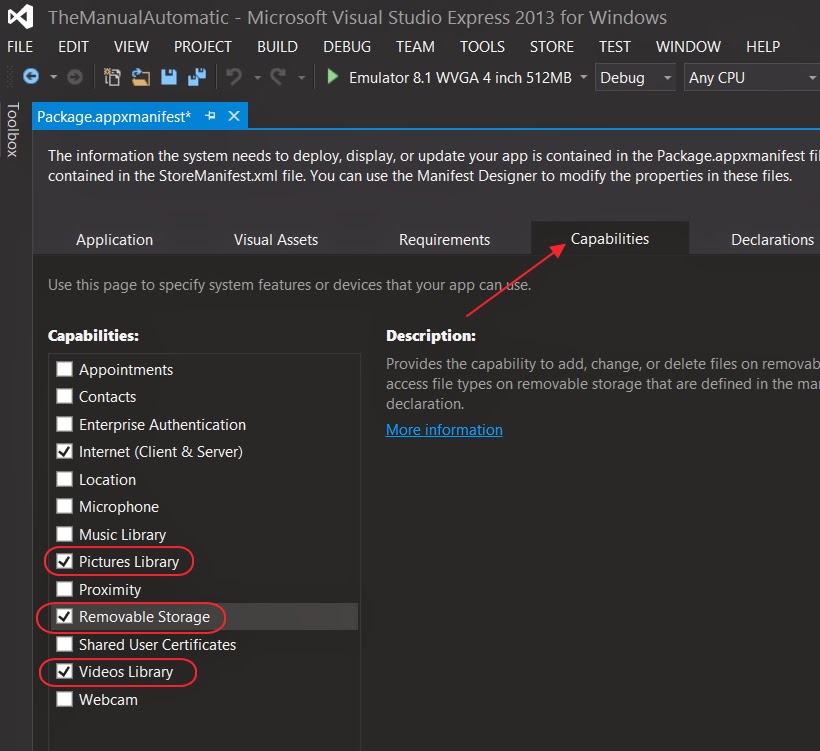
Step 1 - Enabling camera functionality

First we need to enable access to the Camera and the Storage card. This is done in the Package.appxmanifest.


Step 2 - Using the FilePicker

In order to Pick a file from the phone or snap a picture, I use the FilePicker finctionality of the phone. This is standard phone behaviour and would be nice to use. 

I searched for an example of this and found a series of jumpstart lessons.

Jumpstart series - Building Apps for Windows Phone 8.1:
http://channel9.msdn.com/Series/Building-Apps-for-Windows-Phone-8-1

I watched lesson 17 - Camera, Media and Audio in Windows Phone 8.1: http://channel9.msdn.com/Series/Building-Apps-for-Windows-Phone-8-1/17

I use the code form the first demo from the jumpstart lesson.

I also need the Reference WriteableBitmapEx.WinRT because when I added some of the code from the lesson I ecountered this error when building:


'Windows.UI.Xaml.Media.Imaging.WriteableBitmap' does not contain a definition for 'FromStream' and no extension method 'FromStream' accepting a first argument of type 'Windows.UI.Xaml.Media.Imaging.WriteableBitmap' could be found (are you missing a using directive or an assembly reference?)

I right click on the References, and choose "Manage NuGet Packages"


I search for 'writable' and install the pakage


Then when buildign I ran into this Build error:

The type or namespace name 'FileOpenPickerContinuationEventArgs' could not be found (are you missing a using directive or an assembly reference?)

After searching on MSDN I found out it is in the 'Windows.ApplicationModel.Activation' namespace. check http://msdn.microsoft.com/en-us/library/windows/apps/xaml/windows.applicationmodel.activation.fileopenpickercontinuationeventargs.aspx

But that is already added to my using list. 

My using list of the App.xaml.cs:


So I did some digging on the internet and stumbled upon this post:
http://msdn.microsoft.com/en-us/library/windows/apps/xaml/dn614994.aspx

Seems like since I used a Blank Template and that's why I am missing some basic functions...

Quote from the msdn site:
To call a FileOpenPicker and continue your app
  1. Include the SuspensionManager helper class in your project. This class simplifies lifecycle management for your app. To get the SuspensionManager helper class, create a new Windows Phone app that uses a project template other than the Blank App template. The SuspensionManager.cs file is in the Common folder of the project.
  1. Include a helper class like the custom ContinuationManager helper class in your project. This class includes interfaces and methods that make it easier to continue your app. To get the code for the ContinuationManager helper class, download the File picker sample, or see How to continue your Windows Phone app after calling an AndContinue method.

So I open a Hub App Template and check whats inside the Common folder.


I copied the Common folder of the Hubapp template to the Shared namespace of my own app in Visual Studio.


I renamed the namespace (just type a new name and choose the option to rename the namespace that becomes available:


Then I opened the File picker example folder to copy the ContinuationManager.cs


After adding the code I still get the Build error:

The type or namespace name 'FileOpenPickerContinuationEventArgs' could not be found (are you missing a using directive or an assembly reference?)

Aaarrgggg. 

So back to google...
After searching and trying different things I see that some code can but put specifically in for Windows Phone. You just have to put it between these tags: 

#if WINDOWS_PHONE_APP

#endif


When I put the code with the FileOpenPickerContinueEventsArgs between these statements it compiles!

Like so in the App.xaml.cs:

#if WINDOWS_PHONE_APP
        
        // Entry point for new WP 8.1 Contract-based activation like FileOpenPicker
        protected override void OnActivated(IActivatedEventArgs args)
        {
            var fopArgs = args as FileOpenPickerContinuationEventArgs;
            if (fopArgs != null)
            {
                // Pass the picked files to the subscribed event handlers
                // In a real world app you could also use a Messenger, Listener or any other subscriber-based model
                if (fopArgs.Files.Any() && FilesOpenPicked != null)
                {
                    FilesOpenPicked(fopArgs.Files);
                }
            } 
        }

#endif


So I clean up my code and start over with the example from the jumpstart lesson.
I include the above in the App.xaml.cs and the code below in the AddManual.xaml.cs

These are just snippets of the code, I can't post all the code here, but it should give a good idea of what I am doing.

private void addImageButton_Click(object sender, RoutedEventArgs e)
{
    // Pick photo or take new one
    var fop = new FileOpenPicker();
    foreach (var fileType in SupportedImageFileTypes)
    {
        fop.FileTypeFilter.Add(fileType);
    }
    fop.PickSingleFileAndContinue();                        

}


private async void OnFilesOpenPicked(IReadOnlyList<StorageFile> files)
{
    // Load picked file
    if (files.Count > 0)
    {
        // Check if image and pick first file to show
        var imageFile = files.FirstOrDefault(f => SupportedImageFileTypes.Contains(f.FileType.ToLower()));
        if (imageFile != null)
        {
            // Use WriteableBitmapEx to easily load from a stream
            using (var stream = await imageFile.OpenReadAsync())
            {
                originalBitmap = await new WriteableBitmap(1, 1).FromStream(stream);
                RandomAccessStreamReference rasr = RandomAccessStreamReference.CreateFromStream(stream);
                var streamWithContent = await rasr.OpenReadAsync();
                buffer = new byte[streamWithContent.Size];
                await streamWithContent.ReadAsync(buffer.AsBuffer(), (uint)streamWithContent.Size, InputStreamOptions.None);
            }
                    
            Image.Source = originalBitmap;

        }
    }
}


Next I put up a button to add and image.


When I click on it the Button the FilePicker is opened


I can snap a picture and/or choose a photo. Then the picture is shown on the page. :)

Next step is to actually save the picture in my json. I wll do that part in a next post because this is getting a bit long now.


GNZ.


References:

From the jumpstart series - Building Apps for Windows Phone 8.1:
http://channel9.msdn.com/Series/Building-Apps-for-Windows-Phone-8-1

I watched lesson 17 - Camera, Media and Audio in Windows Phone 8.1: http://channel9.msdn.com/Series/Building-Apps-for-Windows-Phone-8-1/17

Done some reading in these posts, but didn;t really used them: Quickstart: Capturing video by using the MediaCapture API:
http://msdn.microsoft.com/en-us/library/windows/apps/xaml/dn642092.aspx