Showing posts with label WP8. Show all posts

Monday, September 29, 2014

WP App part 2 - "the Manual Automatic" - Setting up the DataModel

Goal:
Create the Datamodel for my Windows Phone App 'The Manual Automatic" 


See my first post on Windows Phone App Development here:
http://sometimesiliketopretend.blogspot.com/2014/08/how-to-start-with-windows-phone.html

Check the first setup in part1:
http://sometimesiliketopretend.blogspot.com/2014/09/windows-phone-app-part-1-manual.html


Part 2 - the Datamodel

The datamodel I will use works with json. Like XML it is just a format to store data in. I have followed some online lessons and did some exercises with json and it seems to be the default in the templates so I would like to ue it in my own App.

Then I use the structure from one of the lessons I posted in my previous post about app development:
http://sometimesiliketopretend.blogspot.nl/2014/08/how-to-start-with-windows-phone.html

it is a lesson from this series:
http://channel9.msdn.com/Series/Windows-Phone-8-1-Development-for-Absolute-Beginners


In one of those lessons a complete app is created, I will use a lot from those examples, so don't go off thinking I came up with all the programming myself ;)


DataSource
I add a new class file 'DataSource' to the 'DataModel' folder in the Shared Namespace:


In the opened DataSourcec class file I add a public class called "Manual" and I add some properties for my Datamodel.

Tip:
You can safe some typing time by typing 'prop' and then hit the [Tab] button twice, this will add a empty property.

Tip:
I use a ObservableCollection for my dates, there must be a using statement filled in in order for it to function. Stand on the text you typed and press CTRL + .  (period) The following will pop-up:


This is needed for more options, like the 'Task'. Everytime you see a red line under an text, you should check for spelling and if the 'Using' statement is present. Simply check by pressing CTRL + . and add if needed. You can use this for other additions to. Try it :) 

I also want to store the image in the json object, don't know if it is possible, but I'll try. This way, the picture can be deleted from the phone, but will still be available in thte app. Also I think it will be easier to create a backup or synchronise date in later versions. 

I created the following properties:


Then in the DataSource class I create the Tasks and Methods to save and load data. Again, these are all from one of those great lessons of the channel 9 website. 


There are better tutorials on the internet to explain all this, just search for it. This is just my first little Windows Phone App adventure ;)


Reference DataSource from xaml pages

Next I need to make sure the DataModel can be referenced from the xaml pages.

In the App.xaml I add the following lines:


Now that this is done I can do reference the datamodel from the pages, so I can add the code in the addButton event to store the inserted data.


So now Ihave the Datamodel and the page to save new data.

Finally in this part I will need to show the stored data.


Show the Data

I want to show the inserted data on the MainPage.xaml, just below the search box. I don't know if this ill be the final layout, but I need to test the data input and retreival.

So on the MainPage.xaml.cs on the OnNavigatedTo event I add the following code:

var manuals = await App.DataModel.GetManuals();

this.DataContext = manuals;


And then on the MainPage.xaml I add layout to display it like so:


So now to test it:

It starts up :)
I click the Add icon


I add a Manual:


After clicking the Add button I return to the MainPAge, and the data is shown :)
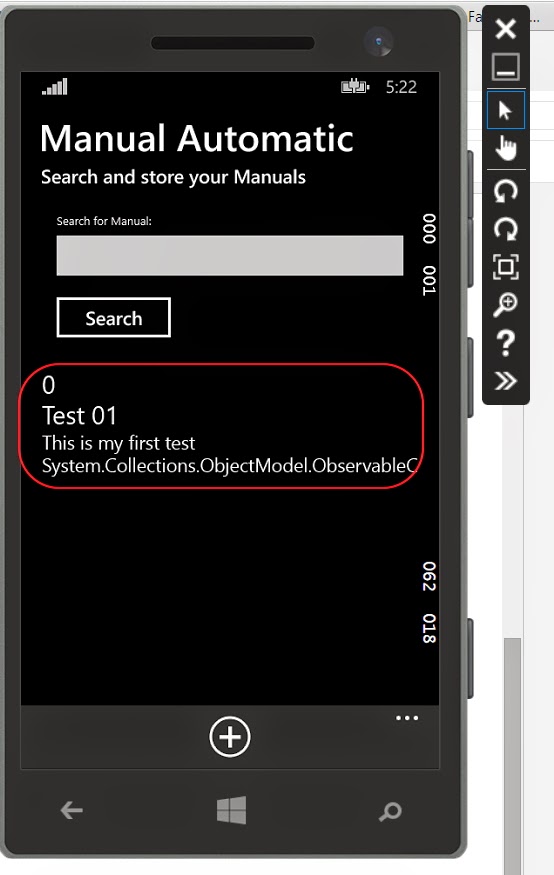

There are some issues, like the ChangeDate isn't showing correctly and I need to autonumber the ID, but hey this works :)

No while the app runs I go to Visual Studio and choose "Lifecycle Events" and choose "Suspend and shutdown"


This will emulate the app being shutdown. Then I start the App again. 

And jeeeee, the data is still there:


OK, so much for this part, next part I will work on getting images stored.

GNZ.

Thursday, September 18, 2014

Windows Phone App part 1 - "the Manual Automatic" - Setting up the Project and basic pages.

Goal:
Create an App for my Windows Phone 8.1 


Example:
I would like to make my own Windows Phone app. 

See my first post on Windows Phone App Development here:
http://sometimesiliketopretend.blogspot.com/2014/08/how-to-start-with-windows-phone.html

My first idea for a app was this: 
To build a radio player that will play streams from the internet. There are many players for Windows Phone, but the only one with a sleep timer is TuneIn radio, and that app sucks on Windows Phone and hasn't been updates in a long time.

All the other internet radio streaming apps do not have a working sleep timer. And I like to listen to radio when falling a sleep. So I need a sleep timer in my app.

But then I did a another good search in the appstore, and found this app:
http://www.windowsphone.com/nl-nl/store/app/bradio-internet-radio/e7da6f45-c9ca-47f5-af29-a7e003af2479
(Sorry for the Dutch link, but I couldn't find a english link...)

So no need to re-create something that is already there. I need a new idea for my first app.


New idea: The Manual Automatic

That was when I came up for with the idea of creating a simple Manual Tracker app. Sometimes I need to lookup something in a manual, like the default admin password for a router after it has been factory reset, or the bluetooth connction code for a device. These things arent used often, but are handy to have stored in a central place.

I personally have those paper books and manuals in a map stored in a closet. When I need some information, I need to browse the map and lookup the needed information. Also when I finally find the right manual I need to skip through it past all the foreign languages to find that one page or paragraph where the needed info can be found.

I want to create a app to simplify this.


Solution:

Create an App for the Windows Phone where I can store a picture / photo of the page of a user manual i need. 
I want to take a picture, add a title and a description to it and store it. Then I need to easily search on my added data in order to find the information I need without having to browse through all my hardcopy manuals.


General Outline

My goal for this first part is to setup the general outline of my idea. Do some thinking on the design and the functionality I need.

Must haves:
  • Store data on the phone.
  • Take picture from the App and save to a record.
  • Add a manual with a description and picture.
  • Search on manual and description to easily find manuals
  • Delete Manuals

Nice to Haves:

  • Backup to a Cloud service. (Onedrive, Dropbox?)
  • Universal App, so it can be used on Windows 8.1 and Windows Phone 8.1. But I need some central storage for this.
  • Multi language setup.

The basic setup 

First of I create a Project in Visual Studio and use the Universal Blank App template. I will not use the Windows part of it for now, but I want to be ready for it :)


For my initial setup I need the following pages:
  • Page to add new Manuals
  • Page to view Manuals
  • Page to Search Manuals
I want to be able to search for manuals directly so that option must be on the mainpage along with the option to add manuals.

So to start off I will create a "Command bar", with an 'Add' option. This is the bar at the bottom of the app, with the three dots when minimized.

You can add the xaml for the command bar directly or, go to the properties of the page:


Then in the properties of the commandbar, scroll down and modify the 'PrimaryCommands' to add a button


Then I add a Name and a "Click event" to it, directly in the xaml. For the click event, press CTRL + space between the quotes if it doesn't show automatically, and create the new event handler by pressing F12.


You can go to the definition to jump straight to the MainPage.xaml.cs to fill in code for the event. I will do that later on.


Next I add some basic labels and a Textbox with a button that I can use to search for manuals.


On the "Search" button I create an event handler, by putting my cursor in the xaml for the Click event and pressing F12.


Now I add a new xaml page on which the controls will be shown to add data.
Right Click on the Windows Phone part in the Solution Explorer and choose Add -> New Item. I choose a Blank page and call it AddManual.xaml


On that page I create fields in order to put data in.


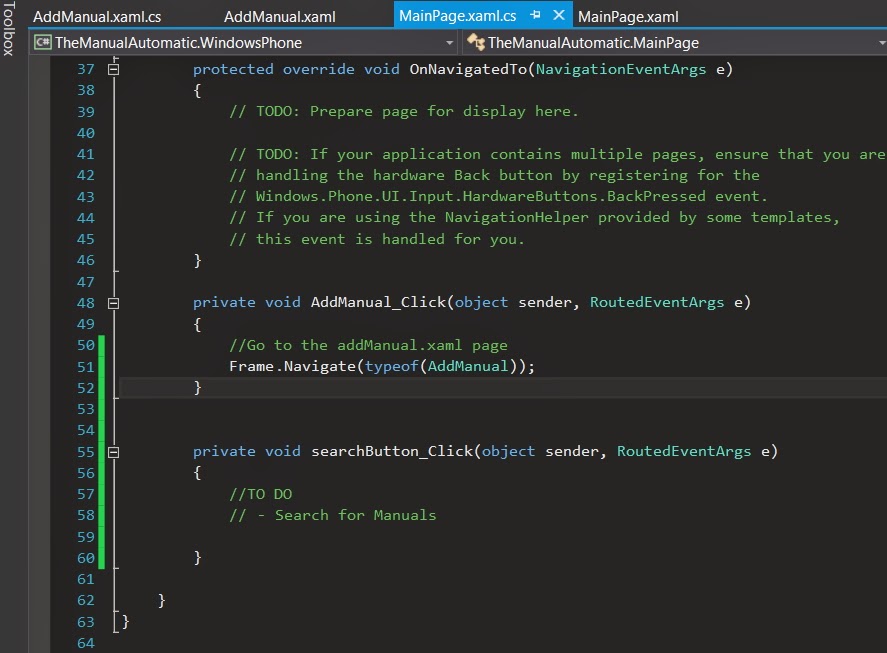
When pushing the "Add" button we now need to navigate to the addManual.xaml page. I go to the Event Handler for the "Add" button on the MainPage.xaml.cs and add the following line:

Frame.Navigate(typeof(AddManual));


And in the AddManual.xaml.cs, in the "Add" button Event Handler I add the following line to naviagte back when we are done adding a item:

Frame.Navigate(typeof(MainPage));

Now to test it, I build the application (BUILD -> Build Solution, or press the F7 key)


And then I want to run the application in the emulator, but I only see the Windows options to run it, not the Windows Phone options.


I need to set the Windows Phone part of my universal app as the startup project, so from the menu referenced in the previous image, choose "Startup Project -> Windows Phone 8.1

Now the run options for the Windows Phone will become available.


Now I run it, and it works :) 


When I click on the "Add" button I go to the page to add a Manual. And when I click on the "Add" button I return to the Mainpage.


Ok, so much for this part, I will do some work on the Datamodel (Storing and retreiving information) in the next post.

GNZ.

Friday, August 1, 2014

How to start with Windows (Phone) development

Goal:
Create an App for my Windows Phone and/or Windows 8 desktop


Problem:
I have no idea how to do this :)

I have basic programming skills in PHP, Object Pascal, Java and now a fair bit of SQL. I gues I need to learn a Microsoft Language


Solution:

Step one - Installing the Tools.

I want to use C# (C-sharp) as the language to program in because I have used Visual Studio before and follwed some basic lessons for C#. Those lessons can be found herehttp://channel9.msdn.com/Series/C-Sharp-Fundamentals-Development-for-Absolute-Beginners

So now in order to develop Windows Apps I need to get Visual Studio. I decide I want to get a free version so I go for Visual Studio Express. There are two different versions;

  • Visual Studio Express 2013 for Windows 
  • Visual Studio Express 2013 for Web

Here you can download the different versions: http://www.visualstudio.com/en-us/downloads/download-visual-studio-vs#DownloadFamilies_2

I downloaded Visual Studio Express 2013 for Windows to develop my Apps in. 

Note:
For the C# lessons I needed to use the 'for Web' version.

When installing this version of Visual Studio note that you need Windows 8.1 !!

Here are the system requirements

Supported operating systems
  • Windows 8.1 (x86 and x64)
Hardware requirements
  • 1.6 GHz or faster processor
  • 1 GB of RAM (1.5 GB if running on a virtual machine)
  • 11 GB of available hard disk space
  • 5400 RPM hard drive
  • DirectX 9-capable video card running at 1024 x 768 or higher display resolution
Additional requirements
  • KB2883200 (available through Windows Update) is required
  • For Windows Phone development:
    • Windows Phone 8.0 development requires Windows 8.1 (x64) or higher
    • Windows Phone 8.1 development requires Windows 8.1 (x86) or higher
    • For the Windows Phone emulators, Windows 8.1 (x64) Professional edition or higher, and a processor that supports Client Hyper-V and Second Level Address Translation (SLAT)
    If your computer meets the operating system requirements but does not meet the hardware requirements for the Windows Phone Emulators, the Windows Phone development tools will install and run. However, the Windows Phone 8.0 and 8.1 Emulators will not function and you must use a device to deploy or test Windows Phone apps.

Another thing worth noting is that your development station needs Hyper-V. Without Hyper-V you cannot start the Phone Emulator and testing can then only be done on a connect Windows Phone device. Which is something you don't want because you then cannot test different resolutions, gps etc etc.

I didn't know if my laptop had Hyper-V so I decided to go in to the BIOS. I have a Sony Vaio Duo 11 and it took me a little while to figure out how to get in. I tried F2, F8 , F10 etc but then I found out that I had to press the 'ASSIST' button while the laptop was shut down.


Shut down the Vaio


Click the 'ASSIST' button at the front bottom.


Go to the BIOS (F2)


Go to the 'Advanced' tab and [Enable] the 'Inter(R) Virtualization Technology'


So this was specific for the Sony Vaio. You will need to figure it out for your own laptop/desktop :)


Step two - Lessons


Now for some lessons I decided to go back to the site with the C# lessons. And it appears they also have some nice lessons on Windows Phone 8.

I started with the Windows Phone 8 Development for Absolute Beginners:
http://channel9.msdn.com/Series/Windows-Phone-8-Development-for-Absolute-Beginners

And half way in I found this serie: 
http://channel9.msdn.com/Series/Windows-Phone-8-1-Development-for-Absolute-Beginners
A Windows Phone 8.1 series and I decides to check that one out and follow the lessons.

Next step is to design and create my very own app. I am currently in the process of doing so and  I'll keep you posted and share my experiences and problems.


GNZ